
What to remove by hand
No guide we read lists exact file paths, registry keys or scheduled task names for this hijacker, and we will not invent them.
What the reports do agree on are the places it changes. Check each of them below and follow our plan above for the clicks.
– Programs: in Settings > Apps > Installed apps, sort by install date and remove anything added shortly before the change. Names that the reports mention are MySearch Toolbar, MySearch and MySearch Search.
– Extensions: in the extensions page of each browser, remove any add-on you did not choose, especially one named after MySearch or a tool you do not remember installing. We found no extension ID in any source.
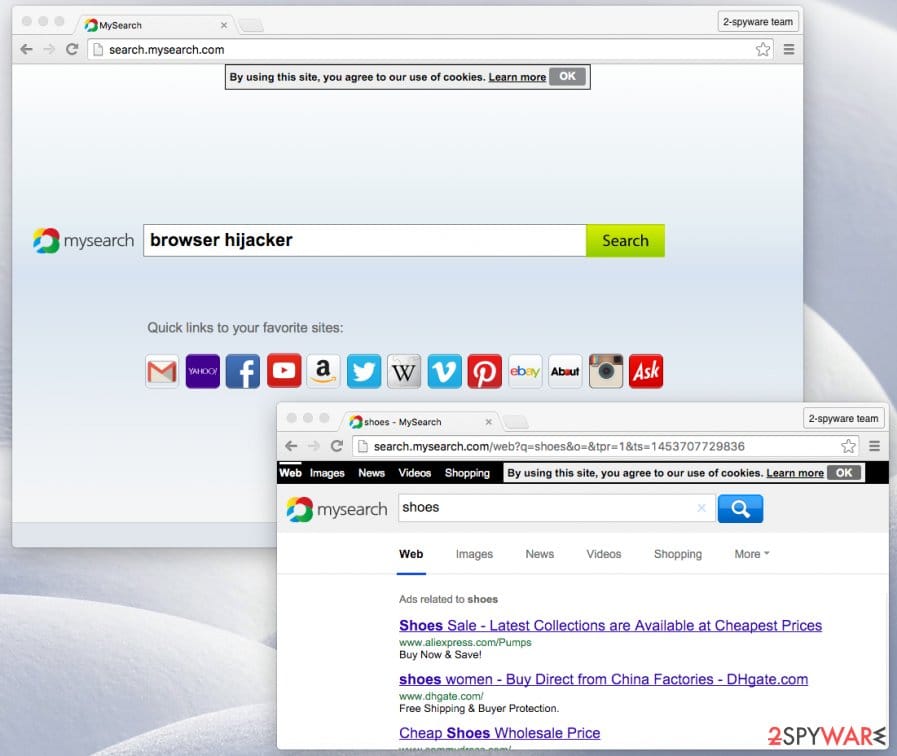
– Home page: remove search.mysearch.com from the On startup list in Chrome and Edge, and from the home page and new tab fields in Firefox. In Firefox also open about:config, filter for mysearch and reset any preference that holds the address.
– Search engine: delete the mysearch.com entry from the saved search engines list, after choosing a provider you trust as the default.
– Scheduled tasks and startup: open Task Scheduler and Settings > Apps > Startup and look for entries you do not recognise that were created around the install date. Reports on sister domains say these programs add tasks and registry entries so that they start with Windows.
– Shortcuts:
- right click each browser shortcut
- open Properties and check that the Target field ends with the browser program file
- carries no web address after it
– Policies: if a browser shows Managed by your organization on a home PC, a policy was added. Remove the extension first, then inspect the policy list at chrome://policy or edge://policy.